Amazon Connect Wallboard: What to Display and Why
An Amazon Connect wallboard gives your team a shared view of queue conditions. A useful display makes three things easy to understand: where customers are waiting, which queues need attention, and whether the team has capacity to respond.
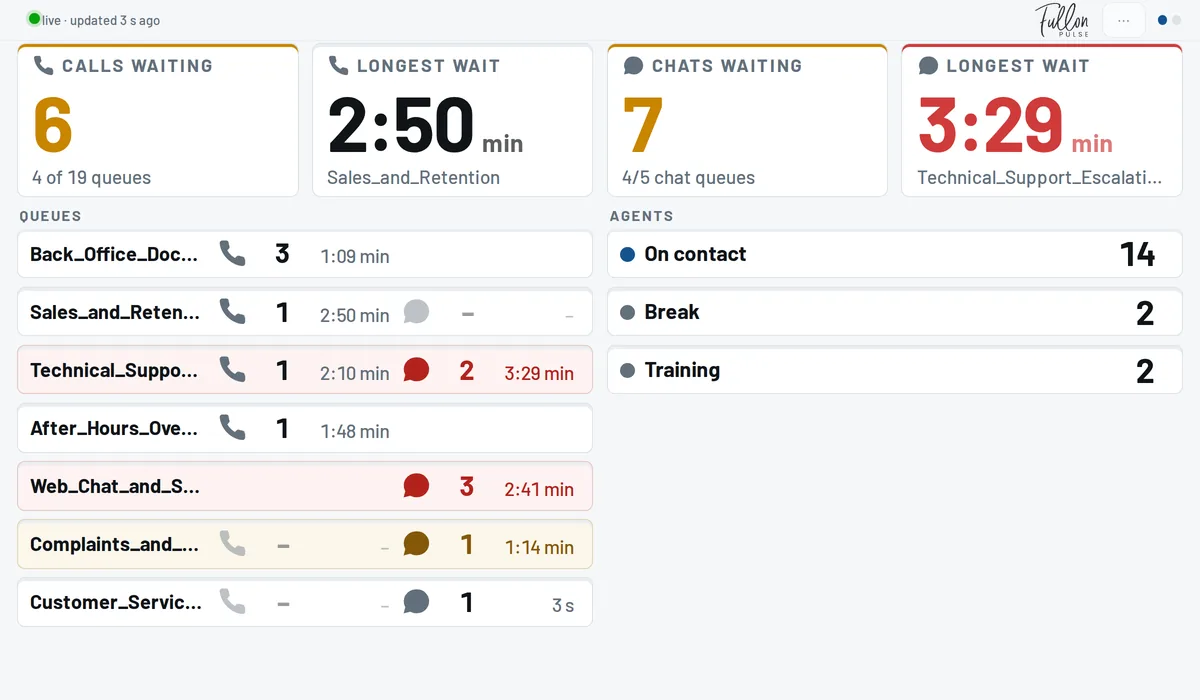
Choosing what appears on the screen matters as much as choosing the screen itself. A display filled with small numbers may contain plenty of information while still failing to help anyone make a decision.
Here is how to build a wallboard that supports the day-to-day running of your contact center.
Start with the decisions your team makes
Before selecting metrics, identify who will use the display and what they should do when conditions change.
A supervisor responsible for several queues needs to spot an imbalance quickly. A team working on one service line needs a clear picture of its own workload. An operations manager may need visibility across voice and chat.
Write down the decisions the screen should support. For example: investigate an unexpected wait, coordinate help from another team, or check whether an approaching break needs operational cover. This becomes your filter for deciding what earns space on the wallboard.
Put customer demand and team capacity together
A practical starting layout includes queue names, waiting contacts, waiting-time information, service level, callback status, and agent availability where relevant.
Place related information together. Seeing a waiting count without any indication of capacity makes the number harder to interpret. Likewise, an availability figure says little without the queue context.
Keep individual queues visible when they serve different customers or have different targets. A combined total can look manageable even when one specialist queue needs urgent attention.
For guidance on interpreting the figures, read our guide to Amazon Connect real-time metrics.
Design for the viewing distance
A wallboard should work from where people actually sit or stand. Test the display from the back of the room, not just from the laptop used to configure it.
Use descriptive queue names, readable text, and a restrained selection of metrics. Keep the meaning of colors consistent and include text or another clear signal so users do not have to rely on color alone.
Avoid making people wait for a rotating slide to learn whether their queue needs attention. If the display must cover many teams, consider whether separate views would make ownership clearer.
Agree on the response behind each warning
A warning is useful when someone knows what to do next. Agree who checks a queue, who can coordinate staffing, and when a problem should be escalated.
An illustrative situation: one support queue has a growing wait while another remains quiet. The screen should prompt the supervisor to investigate whether suitably trained colleagues can help. It should not be taken as proof that anyone who looks available can handle that work.
Our queue alerts guide explains how to connect thresholds with practical response procedures.
Using Fullon Pulse as an Amazon Connect wallboard
Fullon Pulse brings voice and chat queue information to wall displays, browsers, and mobile apps. Its ten-second refresh cycle supports a shared operational view, while configurable alerts help draw attention to selected threshold breaches.
The same service can support the office display and the supervisor checking conditions elsewhere. That gives teams a common point of reference when discussing what needs attention.
Start with the queues and decisions that matter most, then test the layout during a normal shift. Ask the people using it whether they can identify the next action at a glance.
Explore Fullon Pulse to see how a shared Amazon Connect wallboard could fit your team.